

All Products
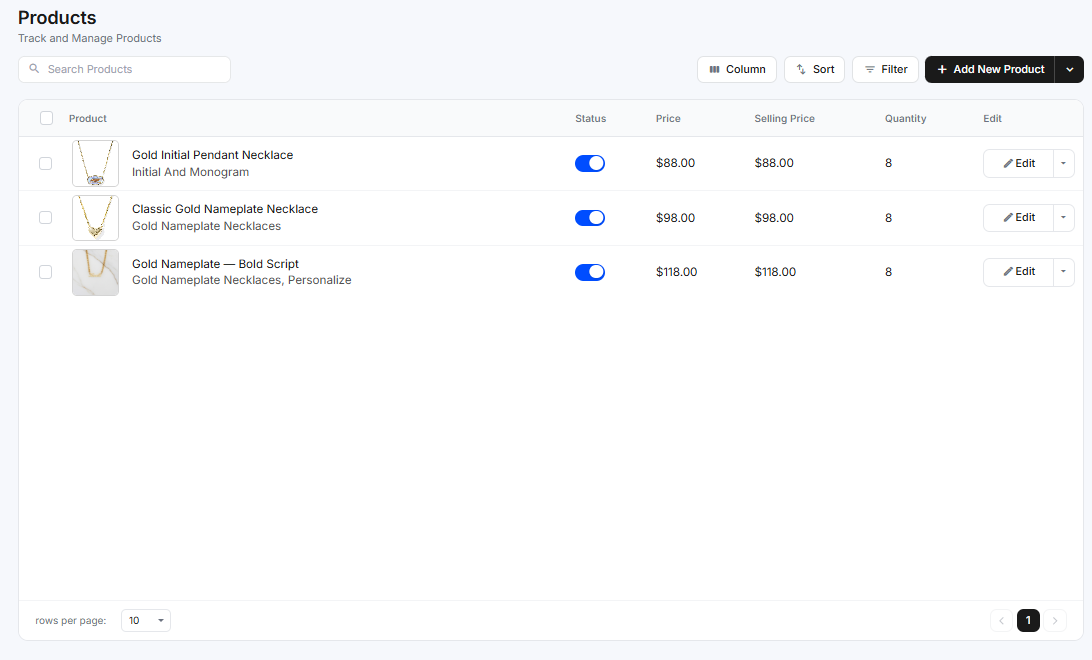
The All Products page is where you track and manage every product in your store. Open it from Products → All Products in the dashboard sidebar.
From here you can search your catalog, control how the list looks, filter and sort it, add new products, and edit or enable/disable any existing product.
The toolbar
Above the product list you'll find:
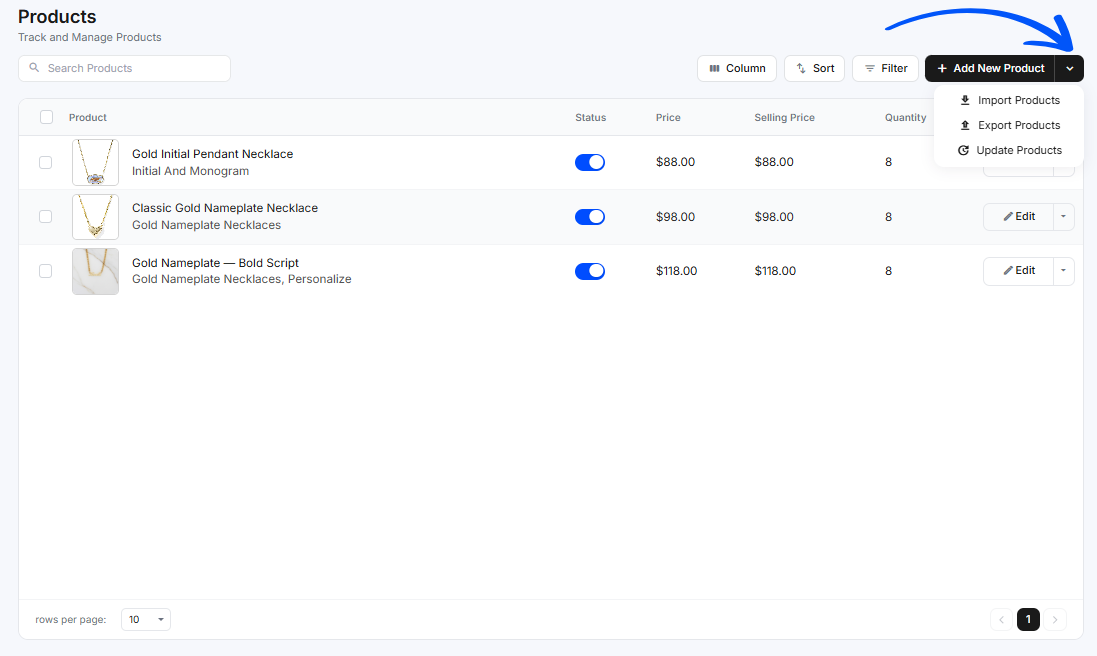
- Search Products. Find a product quickly by name.
- Column. Show or hide table columns.
- Sort. Change the order the products are listed in.
- Filter. Narrow the list to products that match a status.
- Add New Product. Create a new product. The dropdown next to it holds bulk actions (see below).
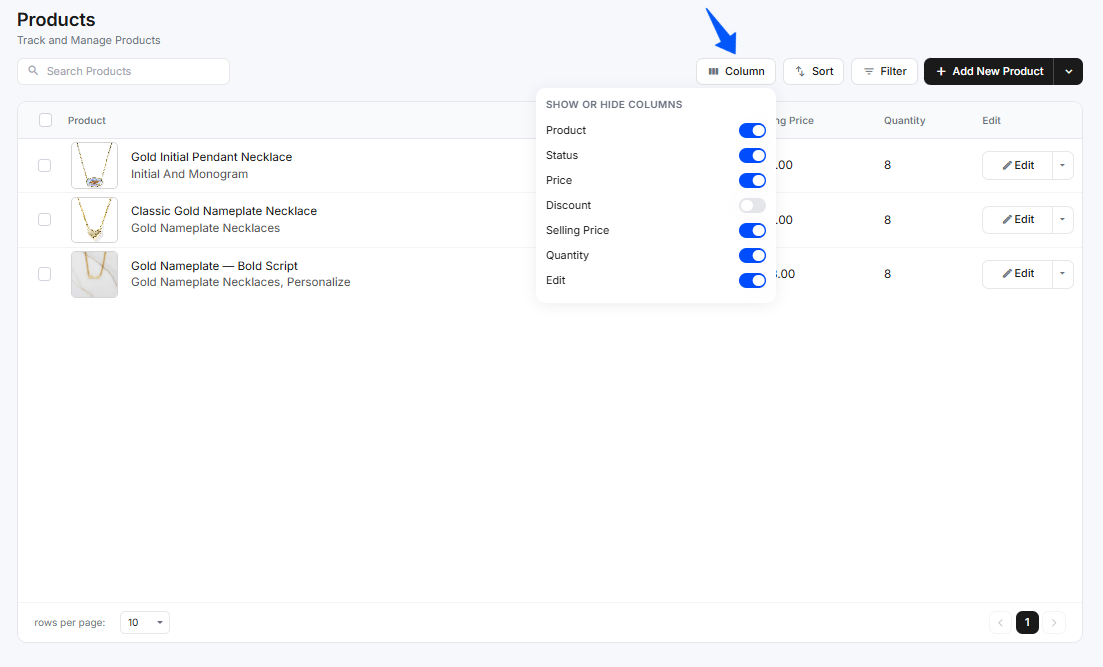
Column
The Column button lets you choose which columns appear in the product table. Click it to open the Show or hide columns menu, then use each toggle to show or hide that column. Turn one off to hide it, or on to bring it back.
You can toggle: Product, Status, Price, Discount, Selling Price, Quantity, and Edit.
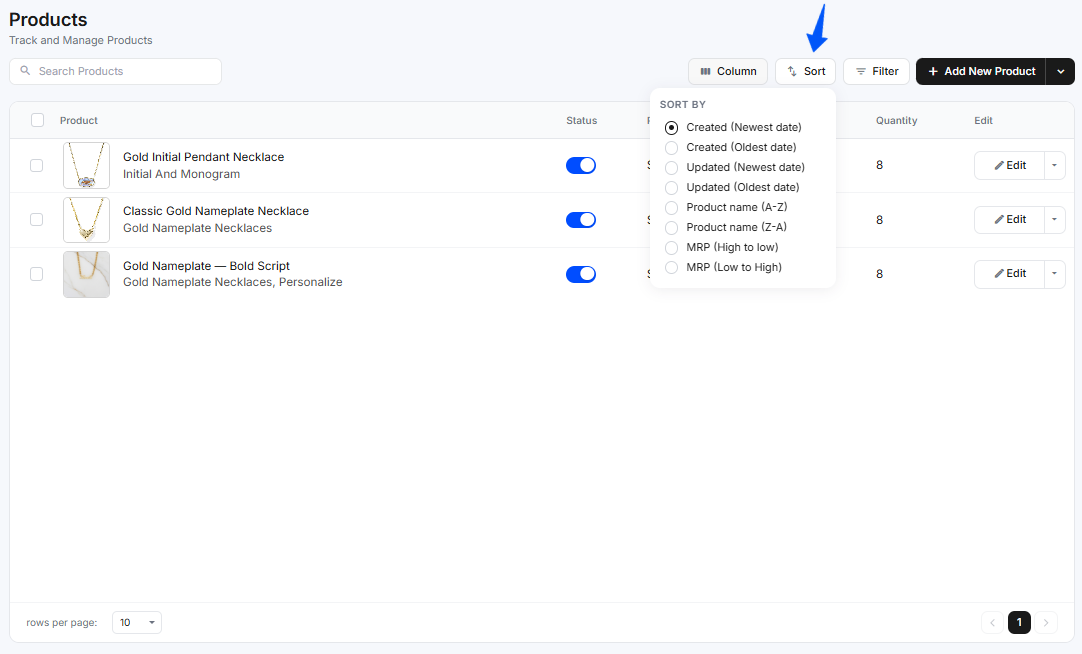
Sort
Click Sort to order the list by:
- Created (Newest or Oldest date)
- Updated (Newest or Oldest date)
- Product name (A–Z or Z–A)
- MRP (High to low or Low to High)
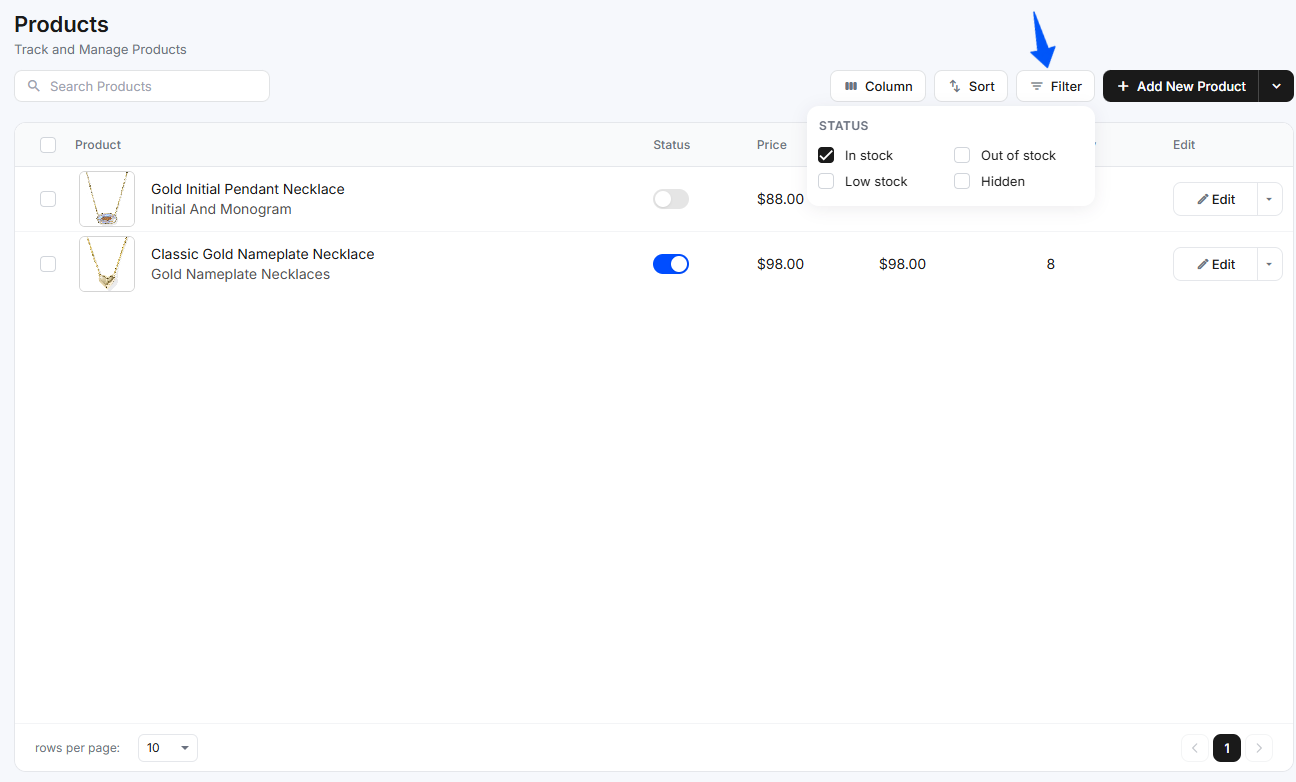
Filter
Click Filter to show only products with a given status:
- In stock
- Out of stock
- Low stock
- Hidden
Bulk actions
The dropdown arrow next to Add New Product gives you three bulk options: Import Products, Export Products, and Update Products.
Import Products
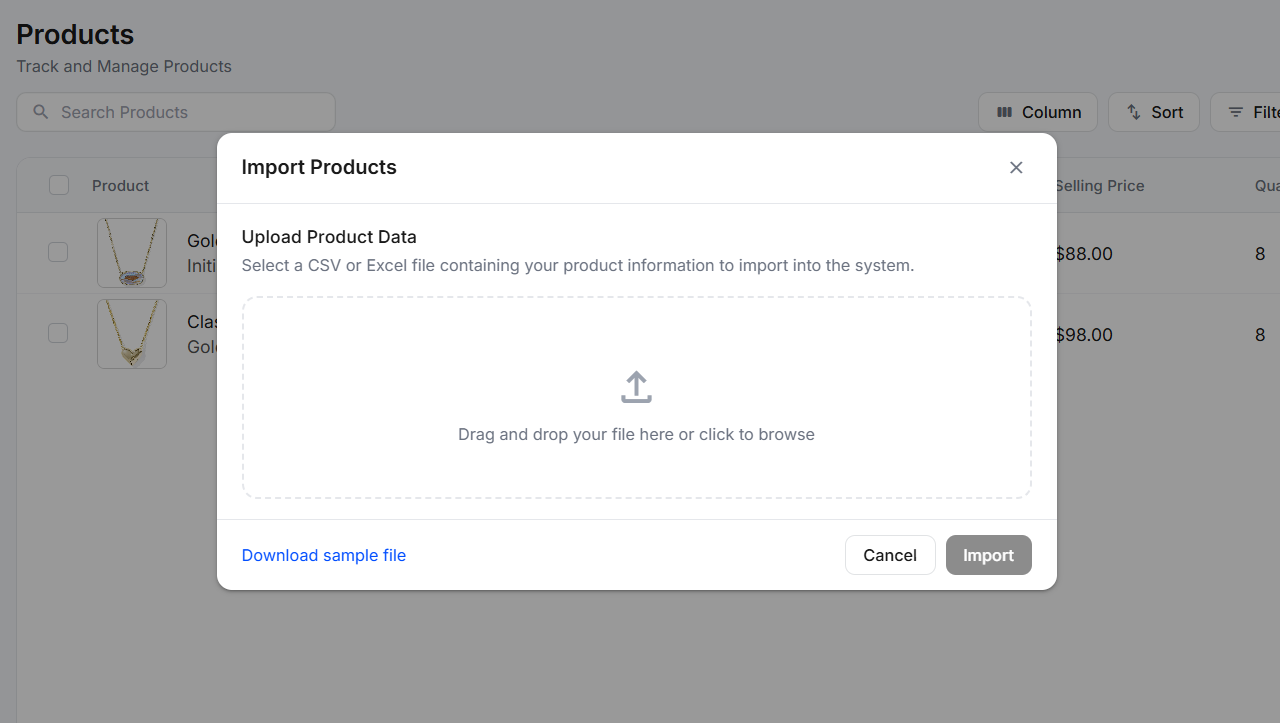
Use this to add many products at once from a file. In the Import Products dialog:
- Click Download sample file to get the correct format, then fill it in with your products.
- Drag and drop your CSV or Excel file into the box, or click to choose one.
- Click Import to add the products, or Cancel to close.
Export Products
Downloads your products as a CSV file. In the Export Products dialog, tick the columns you want to include, grouped into:
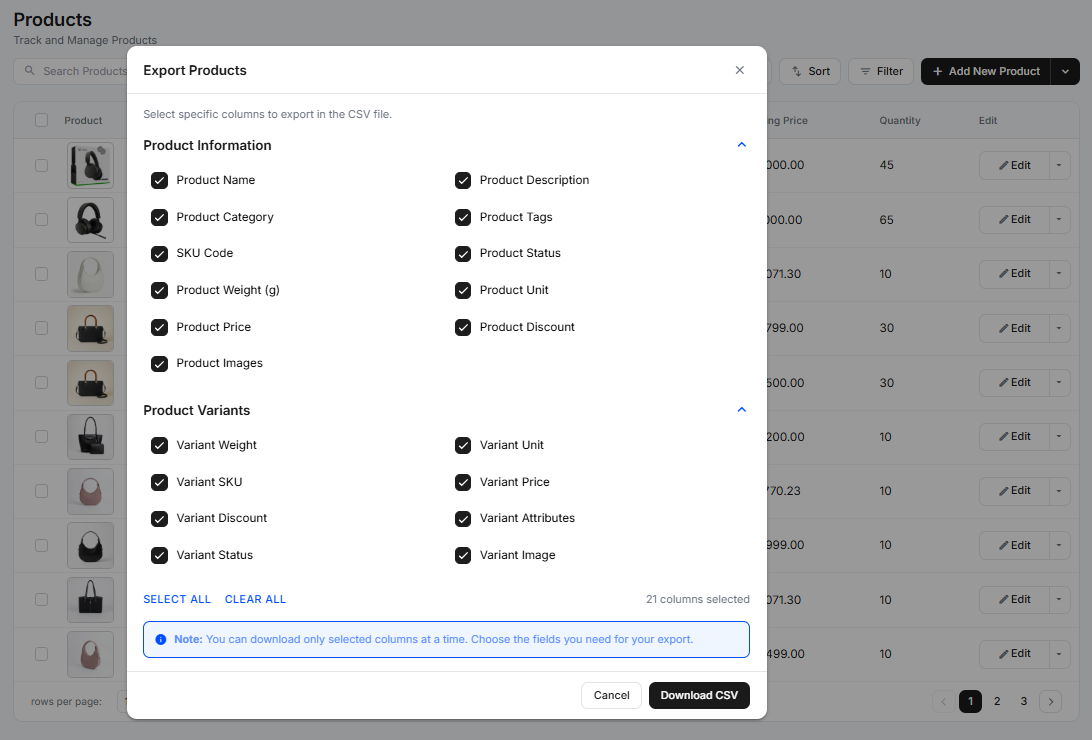
- Product Information: Product Name, Product Description, Product Category, Product Tags, SKU Code, Product Status, Product Weight (g), Product Unit, Product Price, Product Discount, and Product Images.
- Product Variants: Variant Weight, Variant Unit, Variant SKU, Variant Price, Variant Discount, Variant Attributes, Variant Status, and Variant Image.
Use Select all or Clear all to toggle every column at once. Click Download CSV to export, or Cancel to close.
Update Products
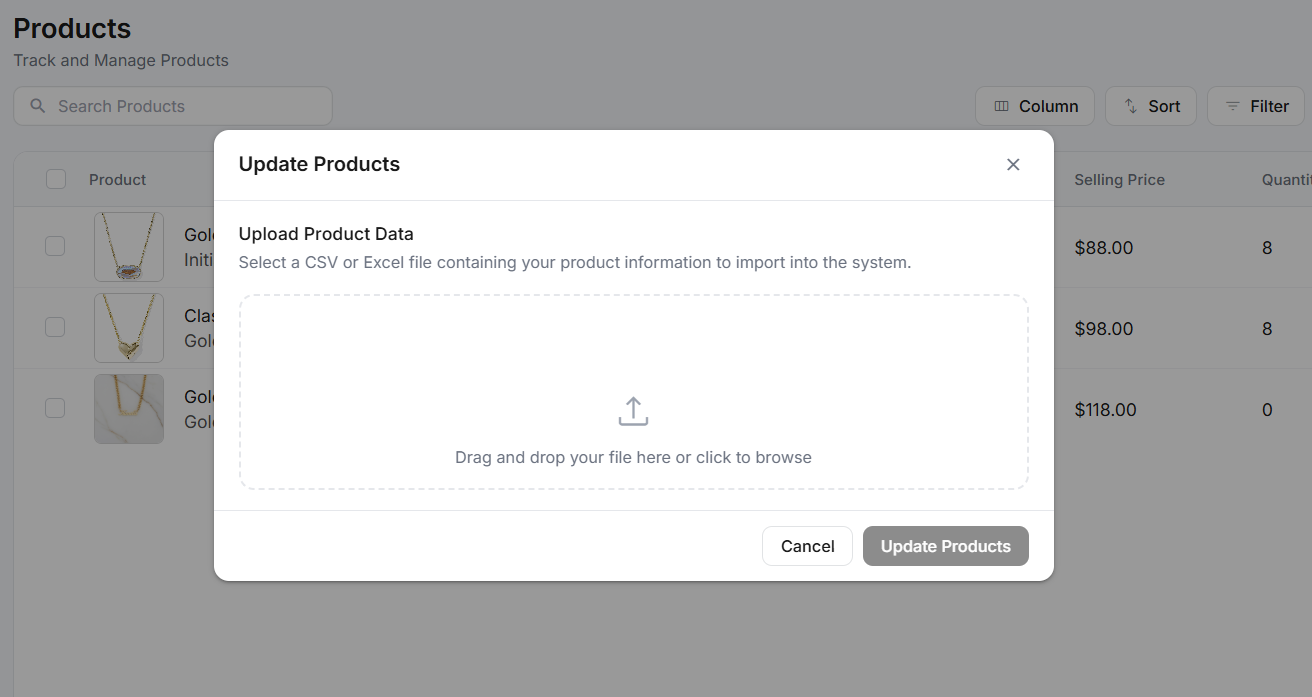
Updates existing products in bulk. In the Update Products dialog, drag and drop a CSV or Excel file (or click to browse), then click Update Products to apply, or Cancel to close.
The product list
Each row in the table represents one product and shows:
- Product. The product's image, name, and category (for example Cordless Circular Saw under Power Tools).
- Status. A toggle that turns the product on or off. When off, the product is hidden from your storefront.
- Price. The product's base price.
- Discount. Any discount applied (shows N/A if none).
- Selling Price. The price customers actually pay after any discount.
- Quantity. How many units are currently in stock.
- Edit. Open the product to change its details. The dropdown (the arrow next
to Edit) holds three more actions:
- View. Open the product to see its details.
- Duplicate. Create a copy of the product.
- Delete. Remove the product.
Selecting products (bulk actions)
Tick the checkbox on one or more rows (or the checkbox in the header to select all) to act on several products at once. A bar appears above the list showing how many are Selected, with these actions:
- Delete. Remove the selected products.
- Publish. Make the selected products live on your storefront.
- Unpublish. Hide the selected products from your storefront.
Publish and Unpublish ask you to confirm first:
- Publish shows "Publish Product? Are you sure you want to publish selected product?"
- Unpublish shows "Unpublish Product? Are you sure you want to unpublish selected product?"
Click Yes, proceed to apply the action, or No, cancel to back out.
Adding and editing products
- Click Add New Product to create a new product. See Add a Product for the full form.
- Click Edit on any row to update an existing product's details.
Paging through products
At the bottom of the list, set rows per page and move between pages using the pagination controls.