

SEO
Open the Settings panel from the Builder's left menu, then choose SEO to control how search engines discover and index your store.
The SEO panel has two tabs:
- Sitemap.xml. Tell search engines which pages exist and how important they are.
- Robots.txt. Tell search engines which parts of your store they may or may not crawl.
Sitemap.xml
A sitemap is a list of your store's pages that helps search engines like Google find and index them. The Sitemap.xml tab shows each page as a row with a URL and a Priority.
URL
The page path, for example /home, /products, or /checkout. Click the field
to pick from your store's pages.
Priority
A number from 0.0 to 1.0 that hints how important a page is relative to your other pages. Higher values suggest a page is more important to crawl.
1.0: your most important pages (for example/home).0.8: key pages such as/productsor/product-details.0.5: standard pages.
Adding and removing entries
Add an entry
Click + Add entry to add a new row to the sitemap.
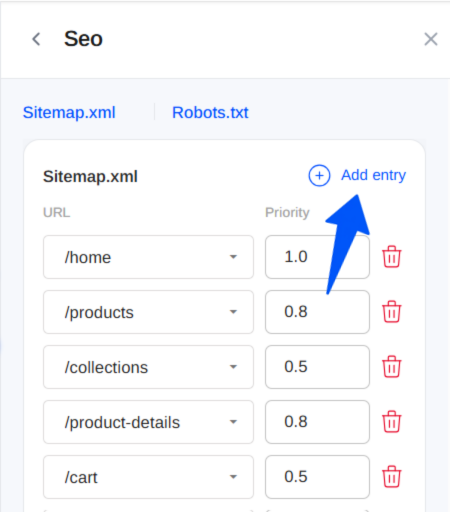
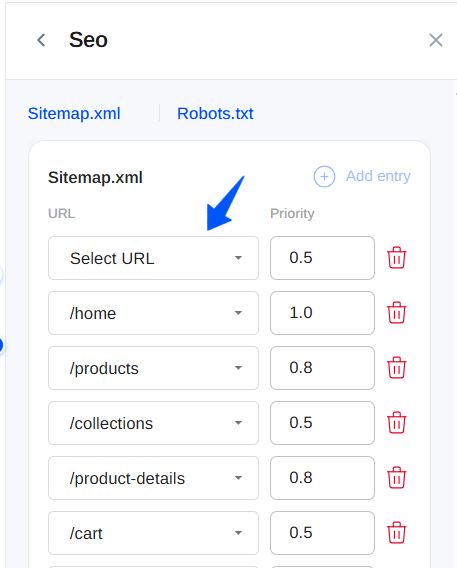
Choose a URL and set the priority
A new row appears at the top. Open the Select URL dropdown to pick the page, then set its Priority value.
Edit an entry
Change the URL dropdown or the Priority value on any row at any time.
Remove an entry
Click the trash icon on a row to remove that page from the sitemap.
Robots.txt
The Robots.txt tab controls your store's robots.txt file, which tells
search-engine crawlers which parts of your store they may or may not access. Use
it to keep pages such as the cart, checkout, or account pages out of search
results while letting your products and content be indexed.
Instead of editing raw text, you build robots.txt as a list of rules. Each
rule has three fields:
User Agent
The crawler the rule applies to.
- All. Applies to every search engine.
- A specific crawler, such as Google, applies the rule to that crawler only.
Allow
What the crawler is allowed to access.
- All. The crawler may access the whole store.
- You can also narrow this to specific paths.
Allow except
The paths to block from that crawler, even though the rest is allowed. For
example /dashboard*, /cart*, /checkout* keeps those pages out of search
results.
Adding and removing rules
Add a rule
Click + Add rule to create a new rule, then set its User Agent, Allow, and Allow except values.
Target a specific crawler
To apply different behaviour to one search engine, set that rule's User Agent (for example Google) and adjust its allow/block paths.
Remove a rule
Click the trash icon on a rule to delete it.
Save
Click Save to store your robots.txt rules.
Publishing your SEO changes
robots.txt, remember to Publish so the changes
take effect on your live store.