

General
Open the Settings panel from the Builder's left menu, then choose General to manage your store's core details: its name, URL, favicon, and social sharing image.
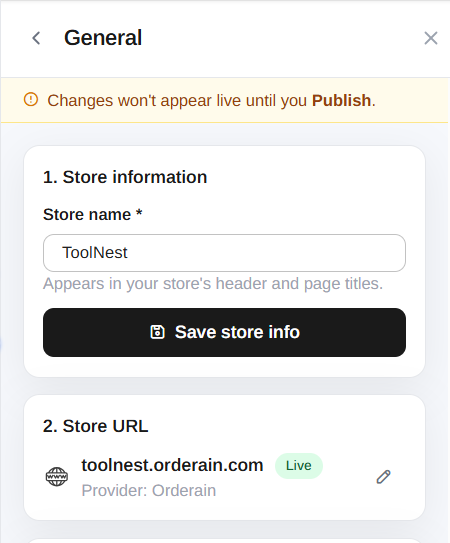
Store information
Set the Store name that appears in your store's header and browser page
titles (for example, ToolNest).
Enter a name
Type your store's name in the Store name field.
Save
Click Save store info to store the change.
Store URL
This section shows the web address where your store is published, for example
toolnest.orderain.com, along with a Live badge and the Provider
(Orderain).
The Live badge confirms the address customers currently use to reach your store.
Editing your subdomain
Click the pencil / edit icon to change your store's subdomain. Only the
subdomain part is editable, the .orderain.com domain stays fixed.
Type a new subdomain
Enter your subdomain in the Subdomain field. The full address updates to
your-subdomain.orderain.com.
Follow the naming rules
A subdomain may only contain letters, numbers, and hyphens, and must be between 3 and 63 characters long. If it breaks a rule, an Invalid message appears in red and you won't be able to save until it's fixed.
Save or cancel
Click Save URL to apply the new address, or Cancel to keep your current one.
Favicon
The favicon is the small icon shown in the browser tab next to your store's name.
- Current favicon assets. The grid shows the favicon images already available for your store.
- Upload new favicon. Click Click to upload or drag and drop a file into the upload area.
Social sharing image
The social sharing image is the preview picture shown when a link to your store is shared on social platforms.
- Click Click to upload or drag and drop an image to set it.
- Accepts PNG or JPG.
- Recommended size: 1200×630px for the best-looking preview.
Publish your changes
None of your General settings go live until you publish them.