

Themes
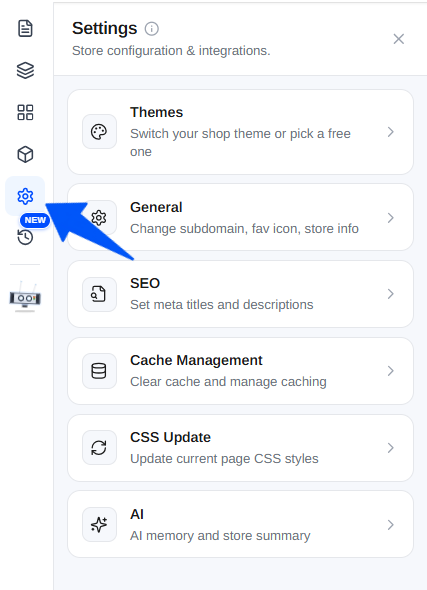
Open the Settings panel from the Builder's left menu, then choose Themes to switch your shop's design. Switching a theme changes how your storefront looks, while your products and data stay safe.
Browsing themes
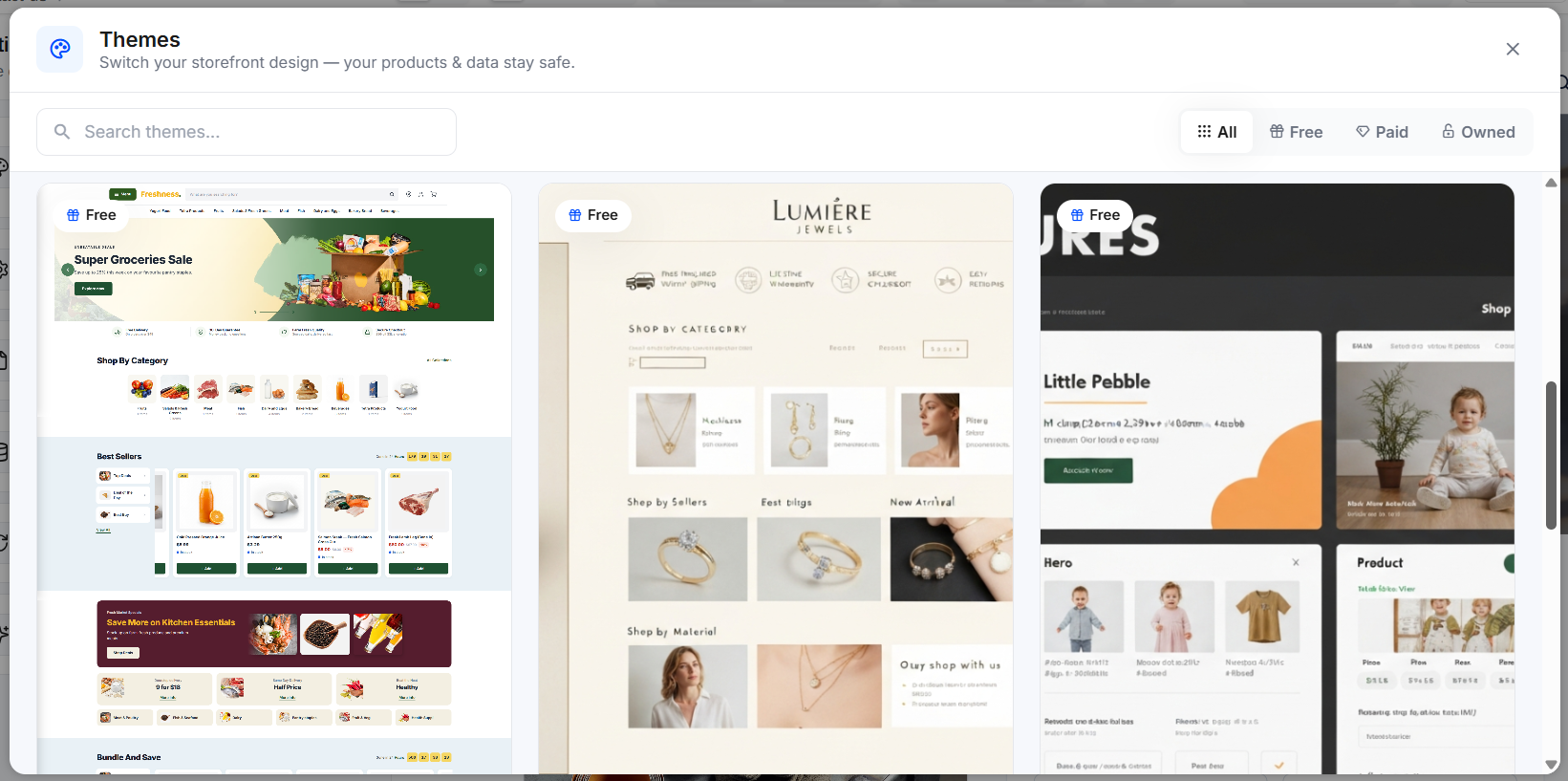
The Themes dialog shows every theme you can switch to. Use the controls to narrow the list:
Filter by type
Toggle between All, Free, Paid, and Owned.
Search
Type in the Search themes… box to find a theme by name.
Preview a theme
Click the eye icon on a theme card to open a full preview before switching.
Use a theme
Click Use on a card (or Use This Theme from the preview) to start switching to it.
Previewing a theme
The theme preview shows a live look at the design, plus a What you get summary. For example, a free theme lists:
- Pre-built pages and layouts
- Fully customizable in builder
- Your products & data preserved
From here, click Use This Theme to continue, or All themes to go back to the gallery.
Confirming the switch
Before anything changes, a Switch to "…"? dialog explains exactly what happens.
- All pages and layouts: the new theme's pages take over.
- Theme design settings: colors, fonts, and section styling.
- Products
- Orders
- Customers
- Brand assets
- Domain
Your current version is saved as a restore point first, so you can switch back anytime (see Version History). Changes go live on your storefront the next time you publish.
Click Switch theme to apply the new theme, or Cancel to keep your current one.